Features
Everything Flow brings to your Inventor workflow.
Property Edit Panel
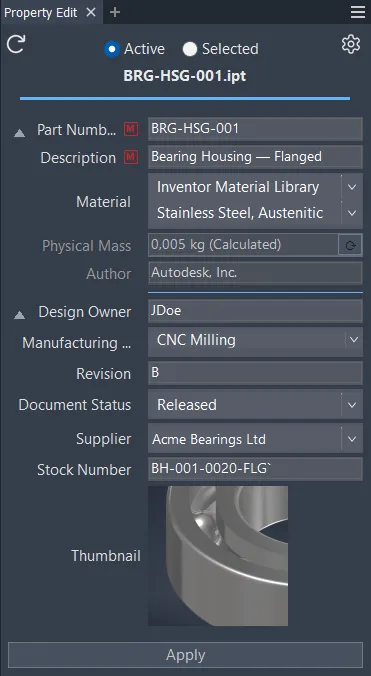
A configurable dockable panel that stays open while you design. Show only the properties your team needs — edit the active document, click any child component, or multi-select and edit several at once.
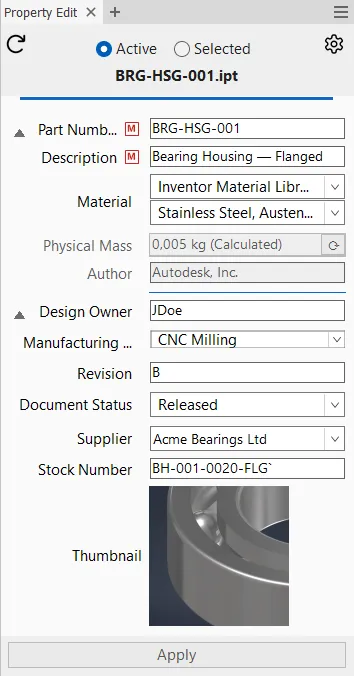
- Edit any child component directly from the assembly — no opening files.
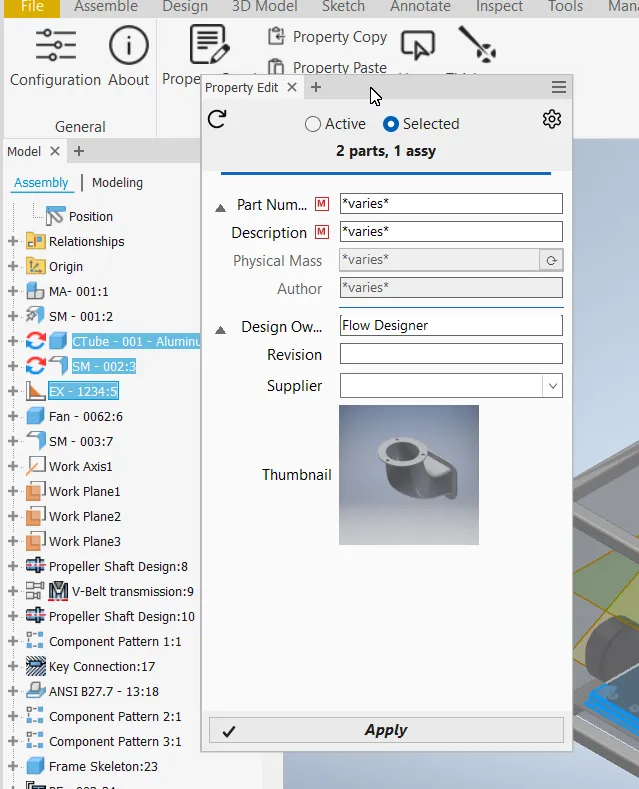
- Scope selector — a compact Active / Selected pill switches between editing the active document and the selected component occurrence.
- Multi-edit — Ctrl+click multiple components in an assembly and edit their common properties at once. Change Part Number, Material, or any configured property across dozens of parts in a single Apply.
- Document categories with rule-based matching — different layouts per document type.
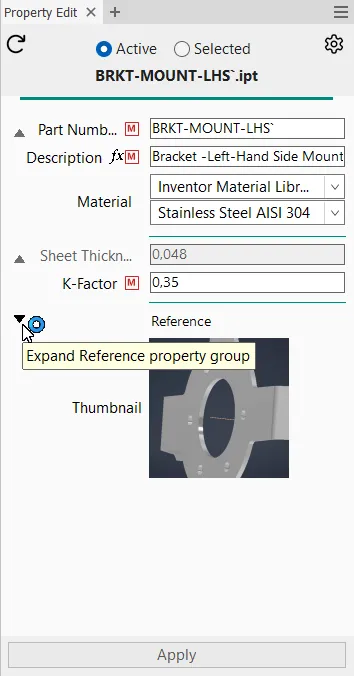
- Property groups with collapsible sections to organise your panel.
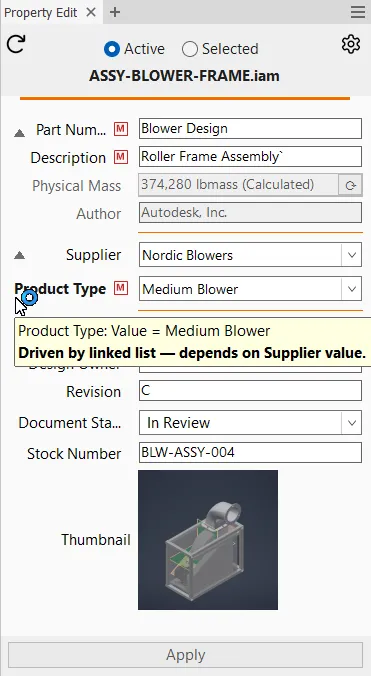
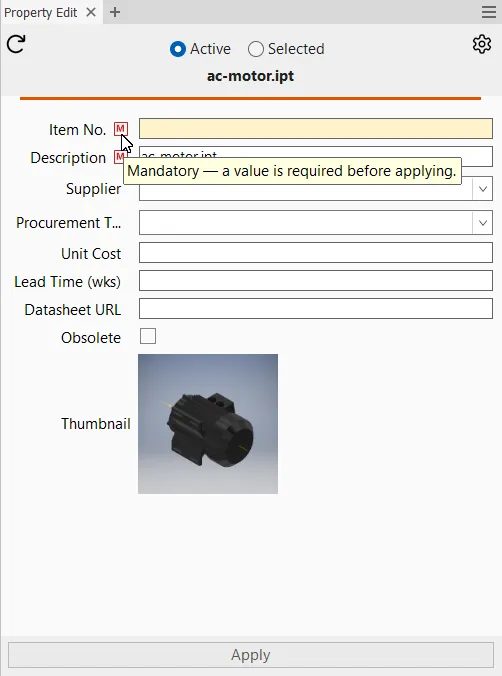
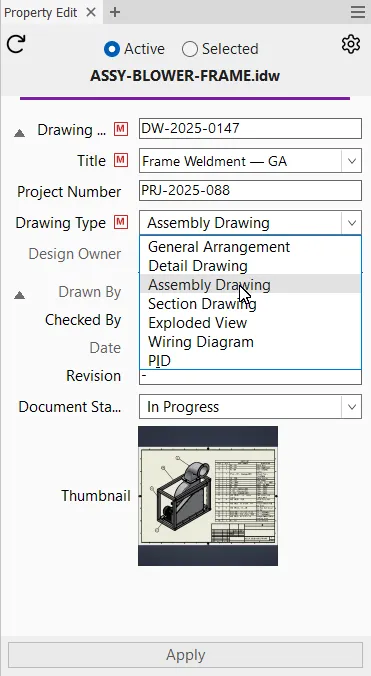
- Dropdown lists with your approved values. Make them required to enforce standards.
- Mandatory properties — require a value before Apply succeeds. Choose Strict, Relax with dialog, or Always relaxed per scope in configuration.
- Allow blank on lists — add an empty entry for explicit "no value" selection.
- Linked lists — one property drives what's available in another.
- Configurable category accents — give each document category its own light/dark accent colour; the panel header and scope pill follow it.
- Thumbnail in the panel to verify you are editing the right component.
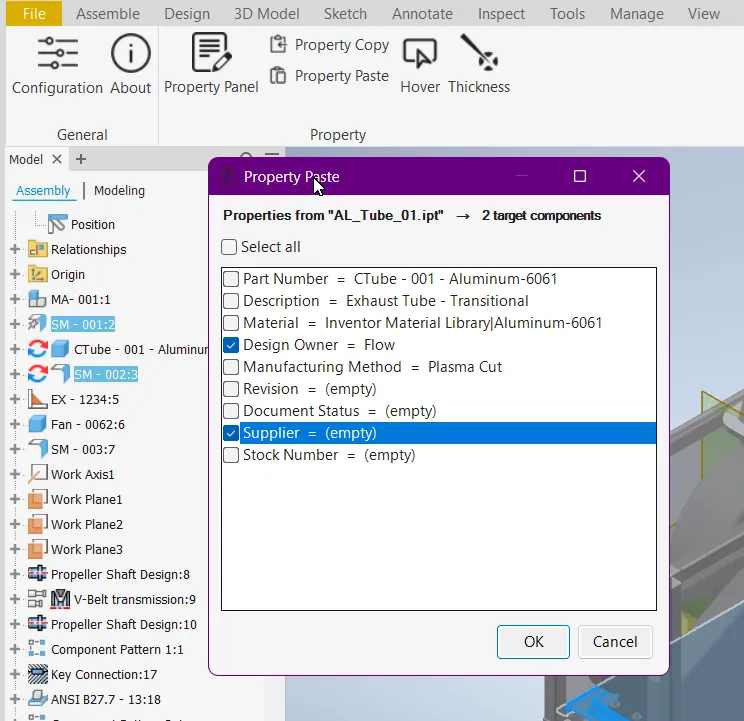
- Copy / Paste property values between components.
- Apply with a single keystroke or click. Flow only writes if the value changed.
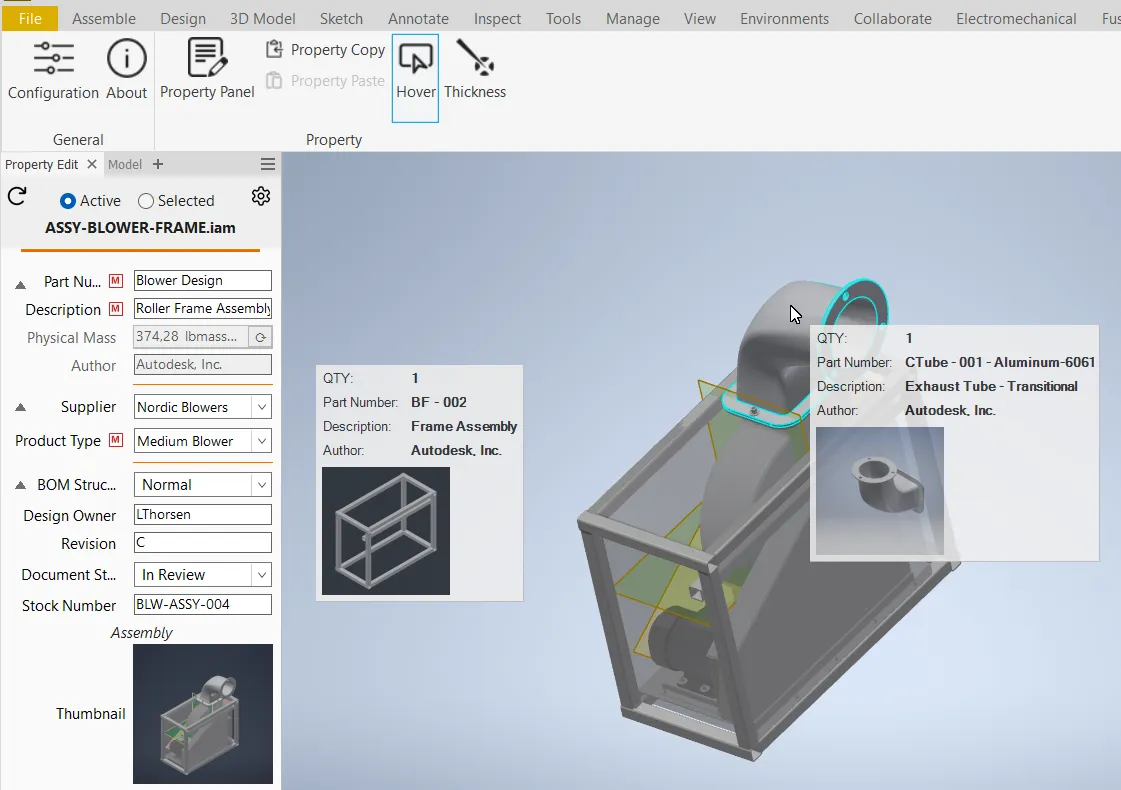
Hover — Live Interactive Property Inspection in the Graphics Window Donor
Activate Hover from the ribbon. Move your cursor over any component. A tooltip appears with the properties you selected — Part Number, Description, Quantity, even a thumbnail. Every instance of that component highlights across the assembly.
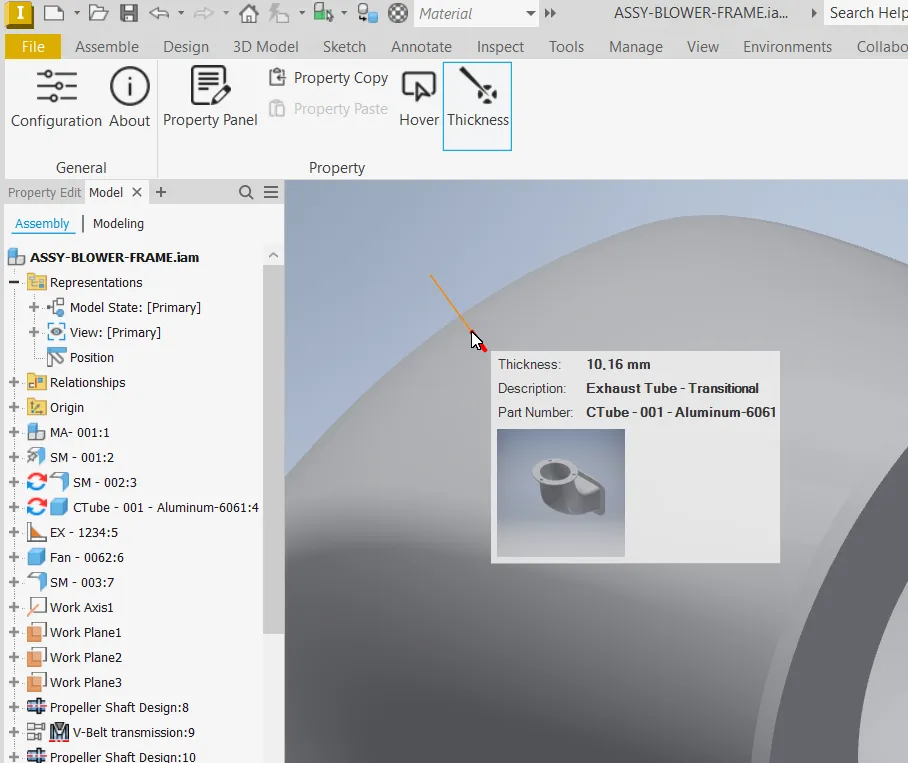
Thickness — Live Interactive Model-Thickness Analysis with Graphical Feedback Donor
Point at any surface and see wall thickness at that exact location, updated live as you move. Instant quality check for sheet metal, thin-walled plastics, and more.
iLogic Rules Module Donor
Give every external iLogic script a proper ribbon button with your own icon, label, and tooltip. Buttons enable/disable automatically based on document type.
Team Configuration
Place your configuration on a network share or in Vault. Every Flow installation points to that single folder. Update the config — every user gets the change on next restart. Licence files work the same way.
Dark Mode Donor
Flow adapts to Inventor's dark theme natively. The Property Edit panel, all dialogs, dropdowns, and tooltips follow the theme. Licensed users get full dark-mode support.